
Getting Started
Manage Targets
Manage Scans
Manage Organizations
Organization Settings
Plans
On Prem
Getting Started
Scan MFA App
Web applications often employ complex authentication mechanisms such as Multi-Factor Authentication (MFA), CAPTCHAs, Single Sign-On (SSO), and OTPs to secure sensitive areas. These layers of protection, while essential for security, can make vulnerability scanning challenging. ZeroThreat Recorder Chrome Extension simplifies the process, enabling you to scan these protected sections without compromising accuracy.
This guide will walk you through performing an authenticated scan on an MFA-protected application.
Step-by-Step Guide: Scanning an MFA App
Before You Start
Ensure that the latest version of ZeroThreat Chrome Recorder extension is installed on your chrome browser.
1. Select Your Target
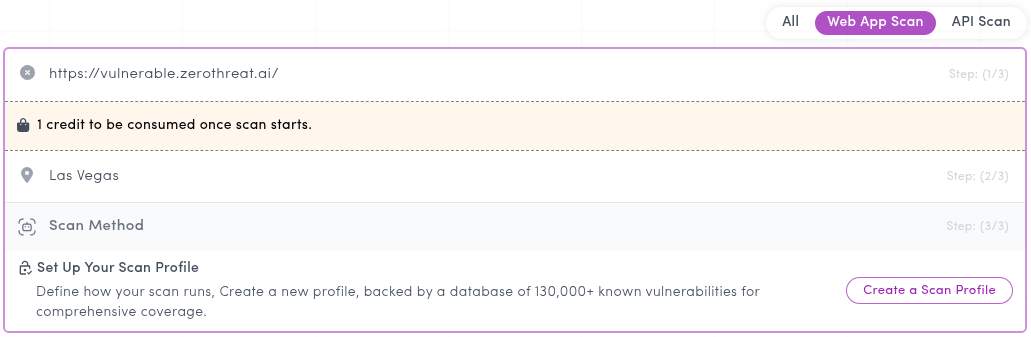
- In the ZeroThreat dashboard, click on "Scan the Target" and choose the application you wish to scan. Next change the scanning server if required.

- Under the Scan Method, click on Set Up Your Scan Profile button.
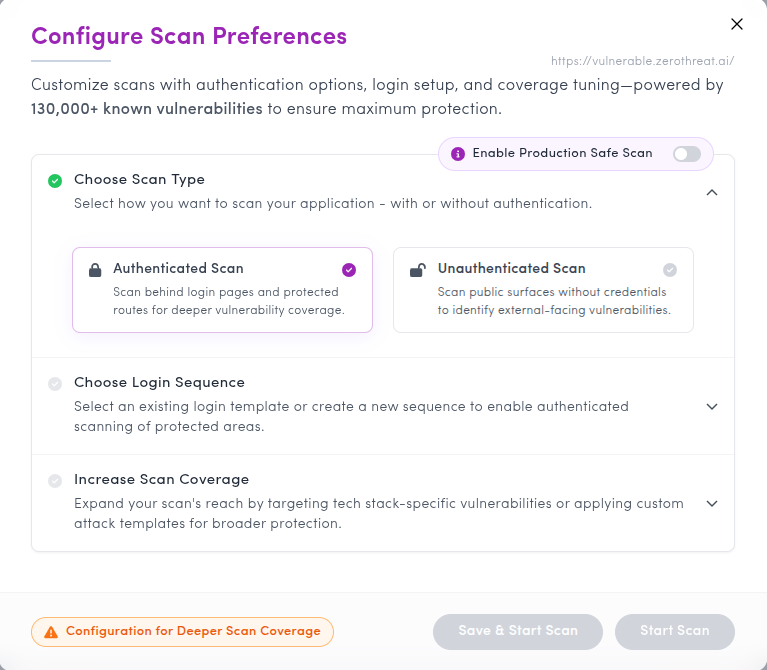
- This opens a new popup called Configure Scan Preferences. Under Choose Scan Type, select Authenticated Scan.
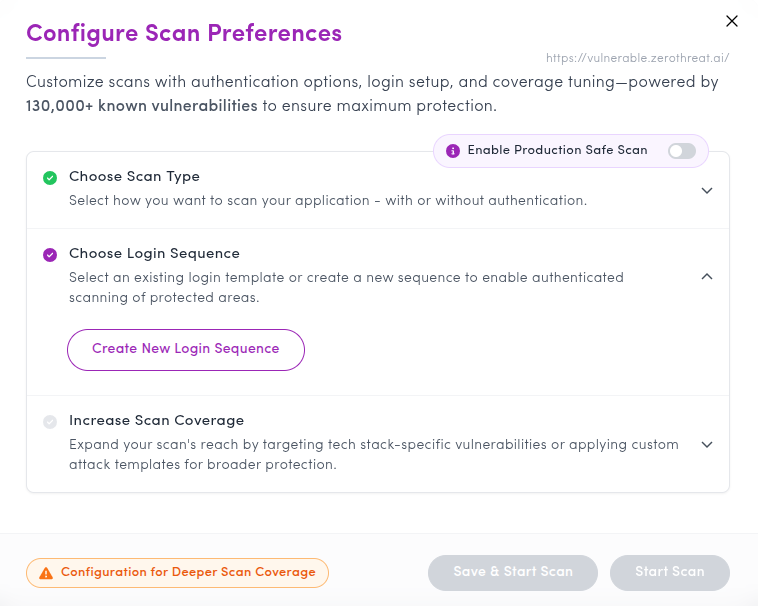
- Next, under Choose Login Sequence, click Create New Login Sequence to create a new one. If you already have a previously created login sequence, you can select and reuse it for future scans.
- This will launch your target web application in a new tab, along with the ZeroThreat Recorder Chrome window.
Minimize the ZeroThreat Recorder Chrome window
You can minimize the recorder window but ensure the that it remains open throughout the recording process.
Visit Troubleshooting: Extension Not Opening if the extension doesn't open automatically in new tab along with target.
For opening and using the chrome extension in ZeroThreat On-Prem version. Refer to ZeroThreat Extension.
2. Configure the Recorder
- Once the extension is loaded, Start by clicking on the Active User Session Authentication(MFA) button. Note that in this method ZeroThreat does not capture or store authentication details—instead, it uses a live user session (token) for authorization. You must stay logged in until the scan runs on the server. This method is perfect for applications requiring captcha, multi-factor authentication (MFA), one-time passwords (OTP), or third-party OAuth.

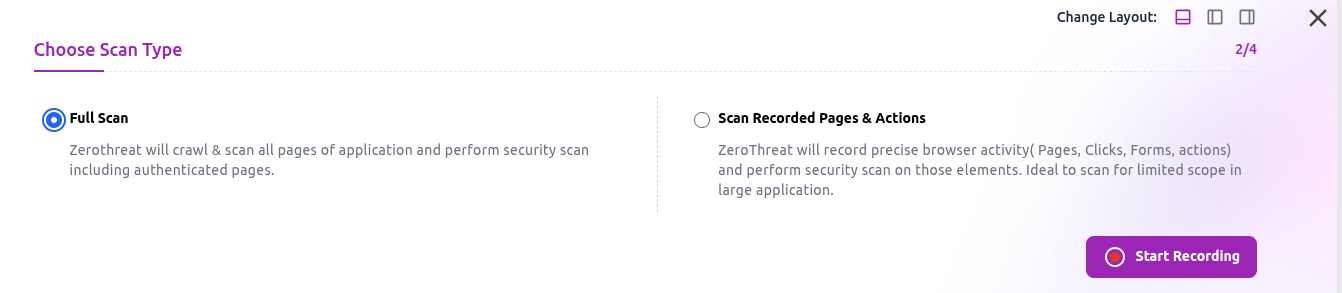
- Next you’ll have two options Full Scan or Scan Recorded Pages & Actions. A Full Scan covers the entire web application, while a Scan Recorded Pages & Actions scan only the pages you visit during recording.
Choose Scan Recorded Pages & Actions if you only want to test the specific pages and interactions captured during your recording session. This is particularly useful when you want to quickly test a particular feature or flow without scanning the entire application. Check Scan Recorded Actions & Pages for more details.
3. Complete the Authentication Process
- Login with Credentials or any other method: Enter your username and password for the application or any other login method.
- Handle MFA:
- OTP: Enter the One-Time Password (OTP) sent to your email or phone.
- CAPTCHA: Solve any CAPTCHA challenges that appear.
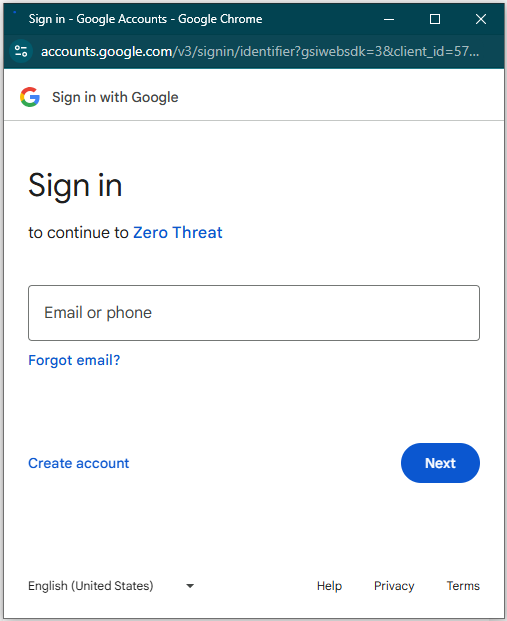
- SSO: If using a Single Sign-On service like Google or Azure, log in with it.
- After this step you should be logged in to the application using any of the authentication method.
4. Stop the Recording
- After logging in successfully, navigate through 2-3 pages while authenticated, then click the Stop Recording (
 ) button in the ZeroThreat Recorder window.
Ensure all authentication steps are completed before stopping the recording to avoid incomplete data capture.
5 . Save and Scan
- Choose the scanning server and click on Start Scan and the scan will start immediately.

Stay Logged In
Ensure that you remain logged into the target application throughout the scan to prevent session timeouts.
6. Monitoring the Scan
- The scan will start immediately and you can track its progress and view results in the Scans section or Recent Scans section in the ZeroThreat portal.

Tips & Cautions
- Stay Logged In: Ensure you remain logged into the application throughout the scan to prevent session timeouts.
- Avoid Unnecessary Steps: Perform only essential actions during the recording to keep the captured data clean.
- Handle Third-Party Services: If your application interacts with external services during authentication (e.g., SSO), confirm that these services are accessible and functional during the scan.
Scan started and want to share the report with team members? See our guide on Share Scan Results.